Introduction
Welcome to the SSC-Tracker help page. Here you'll find all the information you need to get started with SSC-Tracker.
SSC-Tracker.org is a community and hobby project created by flight simulation enthusiasts. The service is free to use, but I cannot guarantee the permanent functionality of these services. In the event of misuse, ssc-tracker.org reserves the right to restrict or completely discontinue the services.
SSC-Tracker is an add-on for tracking multiplayer group flights with Microsoft Flight Simulator 2020 and 2024. You download the SSC-Tracker client via this link, connect it to MSFS, and it transmits your aircraft data to ssc-tracker.org using your ID. Any member of your group can see your aircraft on a map together with your flight data.
To display the aircraft on a map, tools other than the SSC-Tracker Map can also be used, such as Little Navmap or the B21 Task Planner. SSC-Tracker supports both its own format and the Whazzup data format v1.
SSC-Tracker works with all aircraft types but is optimized and includes specific features for glider task flights. It also has deep integration and compatibility with the B21 Task Planner.
Credits: The idea for SSC-Tracker is based on the virtualflight.online tool by Jonathan Beckett, but has been completely rewritten. Much of the work is also based on B21's Soaring Task Engine and tools, with support from the SSC and MSFS Sim Gliding Community.
Quick Start
Get up and running quickly with these simple steps.
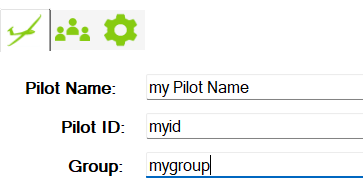
- Download SSC-Tracker and extract it to a folder.
-
Run SSC-Tracker.exe, confirm the security notice for the app and allow port 55055 through the firewall — SSC-Tracker will not work otherwise.
Enter the following details:- Pilot Name: Your name or nickname.
- Pilot ID: A short, unique ID within your flight group (no special characters or spaces).
- Group: A short, unique ID for your flight group — you will only see aircraft from this group (no special characters or spaces).
- SSC-Tracker automatically connects to MSFS and transmits your flight to the server (blinks green). If no flight simulator is running, SSC-Tracker operates in viewer mode, displaying the currently configured group without transmitting your flight data (blinks yellow).
- Open SSC-Tracker.org in a browser to view the aircraft of your flight group.
Moving Maps & Setup
Connection Options
SSC-Tracker has a built-in web server with various options for retrieving flight data for the tools of your choice. All connection options in various formats can be found on the setup page of the SSC-Tracker app.
For reference or copy-and-paste:
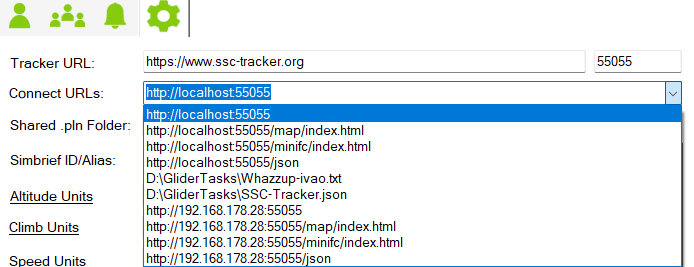
www.ssc-tracker.org Map
When you open www.ssc-tracker.org on your local PC, it automatically connects to the running SSC-Tracker app on the same PC.
If you want to display the map on a second PC or tablet, open a browser there and go to http://[IP SIM PC]:55055/map.
Open www.ssc-tracker.org and enter your group name to display the flight group.

(Scale UI +/−, dock left or top, show/hide aircraft data)
Click the gear icon to show/hide available data fields.
Little Nav Map
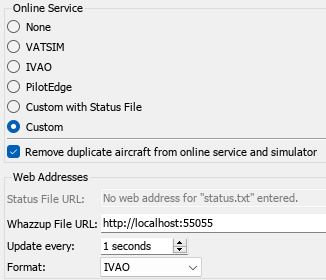
LNM supports the Whazzup v1 format, and SSC-Tracker provides it at localhost:55055 or from the LAN via the IP address of the PC running the SSC-Tracker app.
SSC-Tracker also writes a Whazzup file that LNM supports if there are connection issues via HTTP. Simply copy the URL or path of your choice from the SSC-Tracker setup page.
Note: LNM does not support the /json formats.
B21 Task Planner
Using SSC-Tracker with the B21 Task Planner.
Click on Settings and enter your Pilot ID and the URL of SSC-Tracker.org.

All further options can be found in the help section of the B21 Task Planner.
SSC-Tracker App
The SSC-Tracker App is the heart of the system. It establishes the connection to MSFS via SimConnect, transmits flight data to the server, and runs the local web server on port 55055.
Main Window
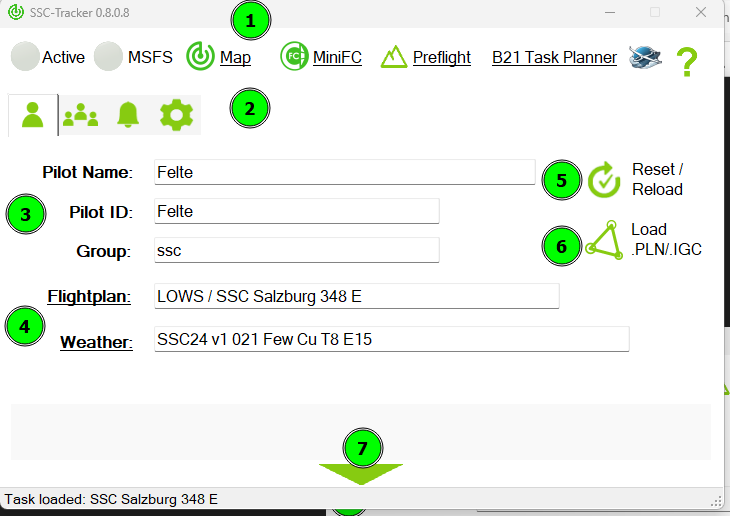
1 Status & Navigation
- Connection indicator (green blinking): Connection to the ssc-tracker.org server is active, flight data is being transmitted.
- Connection indicator (yellow blinking): Viewer mode – no simulator connected, group data is being displayed.
- MSFS indicator: Shows whether a connection to Microsoft Flight Simulator exists.
- SSC-Tracker Map – Opens the map
- SSC-Tracker Mini FC – Opens the Mini Flight Computer
- Preflight – Opens the Preflight 3D Map
- B21 Task Planner – Opens the Task Planner
- wesimglide.org – Link to the website
2 Tabs
- Main
- Group Tasksetter
- Signal
- Ghostflight
- Settings
3 Pilot Data
- Pilot Name: Your display name (e.g. "John Smith").
- Pilot ID: Unique short identifier within the group, e.g. "JOHNS" (no special characters, no spaces).
- Group: Group name of your flight group, e.g. "SSC2" (no special characters, no spaces).
4 Current Task / Flightplan / Weather / Info
5 Reset Task progress / reload Task from server
6 Load .PLN / .IGC Flightplan or Logger record
7 Details
Shows the loaded task with all waypoints and distances.
- URL: Server address (default: https://www.ssc-tracker.org). Only change if you are running your own server.
- Port: Local web server port (default: 55055).
Setup Page
On the setup page you will find:
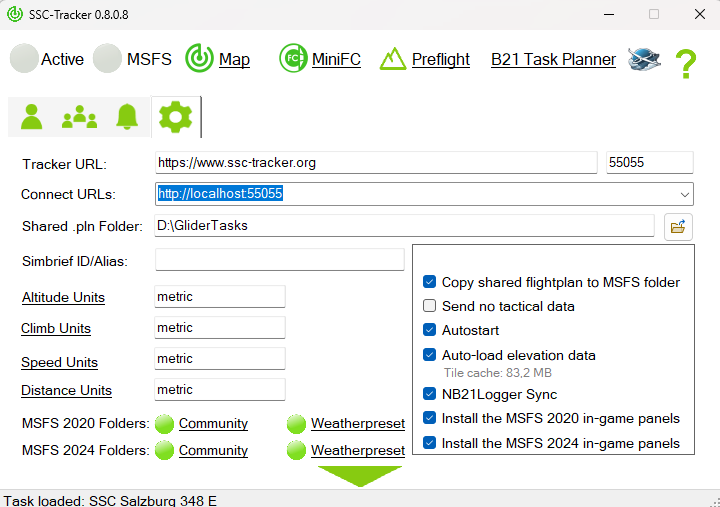
- Connection URLs for all supported formats (ready to copy)
- Copy task files: Enable to automatically copy .pln and .wpr files to the MSFS default folders.
- Elevation Auto-Load: Automatically calculate the elevation profile when a task is loaded.
- MSFS Community folder: Paths to the MSFS folders for panels and weather presets.
- Install Panel: Installs the SSC-Tracker Panel in the MSFS Community folder.
Sleep Mode
SSC-Tracker automatically switches to sleep mode when no browser or tool is accessing the local web server. In sleep mode, no data is fetched from the server to conserve server resources. Sleep mode ends automatically as soon as the web server is accessed again.
SSC-Tracker Map
The SSC-Tracker Map is the integrated map display and can be accessed in a browser at http://localhost:55055/map or on the SSC-Tracker website.
Panel Controls
The floating panel in the top left contains the following controls (left to right):
| Symbol | Function |
|---|---|
| A+ | Enlarge user interface |
| A− | Shrink user interface |
| ◀ | Dock panel to the left; second click for docked or transparent mode |
| ▲ | Dock panel to the top |
| ✥ | Float panel freely |
| 👁 | Show/hide aircraft data table |
| * | Center on own aircraft (toggle) |
| ↑ | Track-up mode on/off (map rotates with heading) |
| NAME | Show/hide labels |
| ∿ | Show/hide flight track |
| ⛰ | Show/hide elevation profile (only visible when a task is loaded) |
| SSC | Show/hide group/task info |
| ⚙ | Open settings |
Via the dropdown in the top right of the panel you can switch the map layer:
- Terrain – Terrain map with elevation shading
- Satellite – Satellite imagery
- OpenStreetMap – Road map
- Further options depending on configuration
Aircraft Table
The table shows all pilots in the group with the configured data values. Clicking on a pilot centers the map on their aircraft. Use the gear icon to show or hide individual values.
- Speed (IAS, TAS, GS)
- Altitude (MSL, AGL)
- Climb/Sink rate (VS)
- Wind (direction, speed)
- Task data (TSK_*)
- and more
Settings
Click the gear icon to open the settings. Here you can configure basic settings such as units.
Preflight Map
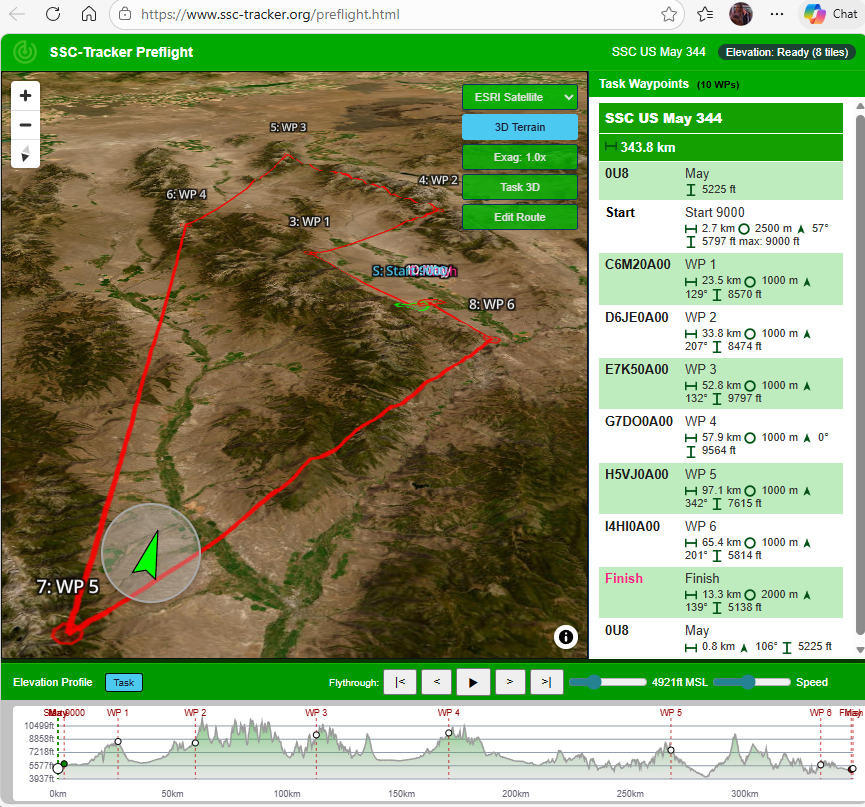
The Preflight Map is an advanced planning map accessible at http://www.ssc-tracker.org/preflight.html. It uses a 3D-capable map view for flight preparation with a terrain model.
Features
- Task display: Route with turn points shown on the map, waypoint list in the sidebar.
- 3D terrain rendering: Optional with elevation texture.
- Elevation profile: Shows the terrain elevation profile along the route (see Elevation).
- User Route: Custom route freely editable — set, move, and delete points by clicking. Saved as
userroute.jsonin the task folder. - Map layers: Switch between Terrain, Satellite, and other tile layers.
Sidebar
The right sidebar shows:
- Task name and route
- Waypoint list with name, distance to next point, and sector type
- Clicked waypoint is highlighted on the map
SSC-Tracker MiniFC
The SSC-Tracker Mini Flight Computer (MiniFC) is a compact display instrument for MSFS. It shows flight and task information for gliders that do not have their own LX navigation computer in the virtual cockpit.
The MiniFC is a work in progress.
The MiniFC can be accessed in a browser at http://localhost:55055/minifc.
Display Fields
| Field | Description |
|---|---|
| MC | MacCready value [m/s] – calculated optimal speed-to-fly |
| Speed | Recommended speed-to-fly (IAS) [kn] |
| Vario | Variometer – climb/sink rate [m/s] |
| Wind | Wind direction and speed |
| Task | Next waypoint, distance, task speed |
Operation
- Click on display: Depending on the field (e.g. increase/decrease MC value).
- Scaling: Automatically adapts to window size.
MSFS In-Game Panel
When the SSC-Tracker FC Panel is installed (see MSFS Ingame SSC-Tracker-FC), the MiniFC is displayed directly in the MSFS cockpit on a panel. It is loaded internally via an iFrame on port 55055/minifc.
Lag / Update Rate
The MiniFC updates data approximately every 1 second from the local web server. A minimal lag of under 1 second is inherent to the system.
Elevation
SSC-Tracker includes a built-in elevation data service that uses SRTM tiles (Shuttle Radar Topography Mission, 30 m resolution). The tiles are automatically downloaded and cached locally.
How It Works
- When a task is loaded and "Elevation Auto-Load" is active, SSC-Tracker automatically downloads the required SRTM tiles for the route area.
- After downloading, the elevation profile along the route is calculated.
- The profile is then available for the map and the Preflight.
Note on first start: On the first load of a task the SRTM tiles need to be downloaded. Depending on your internet connection this may take a few seconds to a few minutes. From the second load onwards, the cached tiles are used immediately.
Elevation Profile in the Map
In the SSC-Tracker Map the elevation profile can be toggled via the ⛰ symbol. It shows:
- Terrain elevation [m] along the route
- Waypoint markers (start, turn points, finish)
- Total distance [km] on the X axis
Elevation Profile in Preflight
In Preflight the elevation profile is shown in a dedicated view below the map. In addition to the task route, the user route can also be displayed there with its elevation profile.
Managing the Cache
Downloaded SRTM tiles are stored in the DEM subfolder of the task folder. Each tile covers one degree of latitude × one degree of longitude and is approximately 25 MB uncompressed. With many different regions flown, the cache can grow noticeably.
The tiles can be deleted at any time without risk — SSC-Tracker will automatically re-download them on the next task start.
Open the cache folder: On the SSC-Tracker App setup page, click the label "Tile cache: X MB". This opens the DEM folder directly in Windows Explorer, where individual or all .hgt and .hgt.gz files can be manually deleted.
Status Query
The current status of the elevation data service can be queried at http://localhost:55055/elevation/status.
Task Flightplan
SSC-Tracker has a function for distributing task/flight plan data (.pln) and/or weather presets (.wpr) for each group. When a task is available for the group, it is automatically downloaded and saved in the app's task folder.
Tasksetter
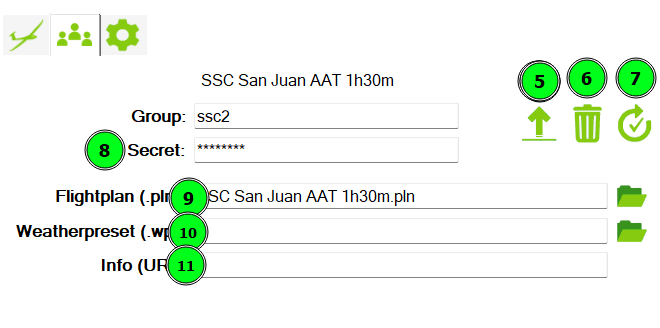
For this function the task setter must first create a group with a secret (8). Click this symbol: 
Upload .pln (9) and optionally .wpr (10) files, along with a short info/URL (11) with symbol (5) for your group.
All options and instructions for creating B21 task files can be found in the help section of the B21 Task Planner.
Task setters can reset task progress (7) or delete the task for the group on the upload page (6).
Pilots
Click the reload icon if you want to force a task download. Otherwise SSC-Tracker automatically checks every minute for new shared group flight plans/task data and downloads them to the app folder. If you enable "Copy task files" on the setup page, .wpr and .pln files will also be copied to the MSFS default folders for weather presets and flight plans.
Click Map to open the map with the flight plan, or click "Task Planner" to open the current task in the B21 Task Planner instead.
If no group task is available, SSC-Tracker attempts to load the .pln from MSFS. Alternatively you can manually upload a .pln for a single flight into SSC-Tracker.
SSC-Tracker automatically tracks task progress for the entire group and displays it on ssc-tracker.org like a live scoreboard. Task progress is only available on the ssc-tracker.org map.
If you need to reset your task progress after a restart, click the reset button to reset your task progress as well.
Ghost Flights
The Ghost feature lets you replay a glider flight recorded by the NB21 Logger from an IGC log file as an AI aircraft in MSFS. The ghost flies the recorded route as a second aircraft in the simulator — ideal for comparing your own performance or practising a familiar route.
What is an IGC File?
IGC is the standard format for GPS flight recordings from physical flight loggers (e.g. LX Nav, Flarm, Zander). The file contains second-by-second GPS positions, altitudes, and optionally task/waypoint information.
Loading a Ghost
- In the SSC-Tracker App, click the button for manually loading a .pln — the file dialog opens.
- Instead of a .pln file, select an .igc file.
- SSC-Tracker loads the IGC log, extracts the task, and displays a new Ghost tab in the main window.
- The Ghost tab shows the information about the recording:
| Field | Description |
|---|---|
| Logger | Type and firmware of the flight logger |
| Glider | Glider type and class |
| Callsign / Name | Competition registration and pilot name |
| Start time | Start time of the flight (UTC) |
| End time | End time of the flight (UTC) |
| Trackpoints | Number of GPS points in the recording |
| Task time | Task time from start to finish |
| Speed avg. | Average task speed |
| Flown/tsk dis. | Distance flown (total / task) |
Activating the Ghost
- Start MSFS and fly your own aircraft normally to the task start point.
- In the Ghost tab, click "Show Ghost".
- Select the aircraft model for the ghost from the dropdown list (shows installed MSFS aircraft).
- The ghost appears as an AI aircraft in the simulator and begins playing back the recorded flight when you cross the start line.
Note: MSFS must be connected and your own aircraft must be positioned at the start before the ghost is activated.
Time Offset (Diff Time)
The Diff Time field lets you set the time offset between your flight and the ghost:
- Value 1 = Ghost starts simultaneously with you.
- Higher values = Ghost starts x seconds after the original's task start. This lets you synchronise to a specific point in the recorded flight — for example if you are flying too far ahead of or behind the ghost.
The maximum value corresponds to the total task time of the loaded IGC log.
Ghost on the Map
When the ghost is active, it appears in the SSC-Tracker Map as an additional aircraft with its own symbol. This lets you compare your current flight directly with the recorded route.
Deactivating the Ghost
In the Ghost tab, disable "Show Ghost" — the AI aircraft is removed from the simulator.
Ghost HUD on the Map
When a ghost is active and the "It's a Race!" setting is enabled, the SSC-Tracker Map automatically shows a small Ghost HUD and a virtual route. It displays the ghost pilot's name along with the current time offset and allows fine-tuning directly during the flight — without switching back to the app:
| Button | Function |
|---|---|
| < 5s | Shift ghost 5 seconds backwards (ghost flies earlier in the task) |
| = sync | Automatically synchronise ghost to your current task time |
| 5s > | Shift ghost 5 seconds forwards (ghost flies later in the task) |
The HUD is freely positionable and scalable.
Chase Mode – "It's a race!"
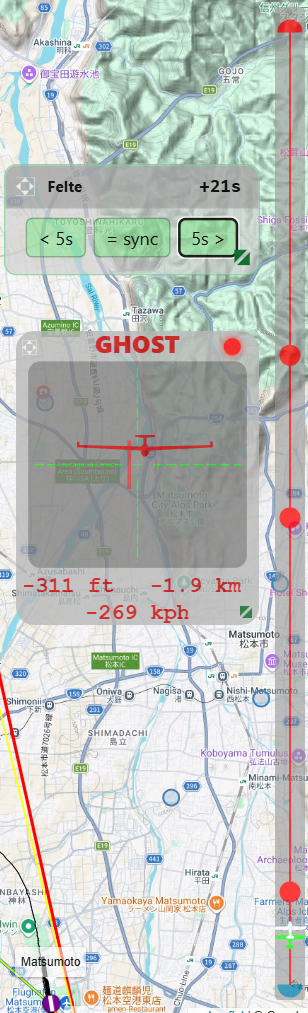
Chase Mode is a graphical radar HUD in the SSC-Tracker Map that enables direct comparison with another pilot — whether with a ghost or a real group member in live multiplayer. It shows in real time where the target aircraft is relative to you.
Activating
Enable Chase Mode in the Settings of the SSC-Tracker Map: turn on the "It's a race!" switch.
The Chase HUD appears on the map and automatically selects the nearest or most relevant fellow pilot as the target. Clicking on a pilot in the aircraft table allows manual target selection. Clicking the same pilot again cancels the manual selection.
Chase HUD Display
The Chase HUD consists of two parts:
1. Radar Panel (centred HUD window)
The HUD shows the target aircraft as a glider graphic on a crosshair:
- Horizontal position: Relative bearing to the target aircraft — left means the target is to your left, right accordingly.
- Vertical position: Relative altitude — the target is at the top of the HUD when it is flying higher, at the bottom when lower.
- Aircraft graphic: Shows the target aircraft from the front or back (depending on direction).
- Red line: Direction to the next task waypoint.
- Altitude: Altitude difference between you and the target [ft/m].
- Distance: Distance to the target [nm/km].
- Speed: Ground speed difference [kn/km/h]. Positive = you are faster.
- LED Trend indicator (coloured dot, top right):
- Green – you are catching up (distance decreasing)
- Red – you are falling behind (distance increasing)
- Grey – neutral equilibrium
2. Task Progress Strip (narrow bar at the edge)
A vertical strip shows the entire task as a line with waypoint markers:
- Green marker – your current position on the route
- White marker – position of the target aircraft on the route
This makes it immediately clear who is further ahead on the route.
Chase Mode with Ghost
Chase Mode also works with an active ghost flight. The ghost aircraft is treated like a normal pilot and automatically appears as the chase target as soon as "It's a race!" is enabled. This lets you compare your flight in real time with the recorded performance of the original.
MSFS Ingame SSC-Tracker Panel
The SSC-Tracker App includes the SSC-Tracker-Panel.zip. If you want to display the ssc-tracker.org map in-game, install the panel via the SSC-Tracker App setup page into your MSFS Community folder and restart MSFS.
The panel loads the SSC-Tracker Map (localhost:55055/map) directly in the MSFS cockpit and shows all group members on the map. All map functions (scaling, data table, etc.) are also available in the panel.
Installation
- On the SSC-Tracker App setup page, click "Install Panel".
- Restart MSFS.
- In the cockpit, activate the SSC-Tracker Panel from the panel bar menu.

Note on Coherent GT
The panel uses Coherent GT as the browser engine (MSFS-internal). There are limitations compared to a normal browser — particularly with certain CSS effects.
MSFS Ingame SSC-Tracker-FC
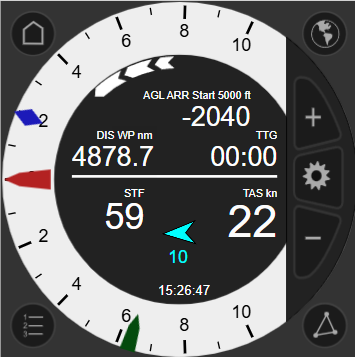
The SSC-Tracker Mini Flight Computer (FC) is a separate in-game panel for gliders without their own LX navigation computer in the virtual cockpit.
Installation
Same as the SSC-Tracker Panel: install via the setup page into the MSFS Community folder and restart MSFS. The FC panel is a standalone panel independent of the map panel.
Display Fields
The MiniFC shows the following values in the cockpit:
- MacCready (MC): Calculated optimal speed-to-fly in m/s.
- Speed-to-fly: Recommended IAS based on the MC value.
- Vario: Current climb/sink rate in m/s.
- Wind: Wind direction and wind speed.
- Next waypoint: Name and distance in nm.
- Task speed: Average speed since the start line in kn.
Operation in the Cockpit
- Click on the MC value to increase or decrease the MacCready value.
- The panel scales automatically to the panel size.
Specification / API
Understanding the Data Format and API
To retrieve data from a third-party app or website, you need a running SSC-Tracker App. SSC-Tracker acts as a proxy to ensure the ssc-tracker.org server is not overloaded.
You can access tracker data via the default port 55055 on localhost. From another device on the local network, access is possible via http://[IP SIM PC]:55055 — for this SSC-Tracker must be run as Administrator.
All endpoints respond via HTTP (HTTPS is currently not implemented). CORS headers are set so that web pages can access them directly.
All Endpoints Overview
GET Endpoints
| Path | Description |
|---|---|
/ | Whazzup v1 format (for Little Navmap) |
/json | Live aircraft data for all pilots in JSON format |
/activetask | Active task as parsed JSON structure |
/activetaskpln | Active task as MSFS PLN XML |
/map | SSC-Tracker Map (browser) |
/minifc | Mini Flight Computer (browser) |
/getsettings | Panel settings as JSON |
/elevation/status | Status of the elevation data service |
/elevation/task | Elevation profile of the active task |
/elevation/point | Elevation of a single point |
/elevation/userroute | Elevation profile of the saved user route |
/elevation/line | Elevation profile between two points |
/elevation/area | Elevation grid for an area |
/userroute/load | Load saved user route |
POST Endpoints
| Path | Description |
|---|---|
/settask | Set task locally |
/setsettings | Save panel settings |
/elevation/userroute | Calculate elevation profile for submitted route data |
/userroute/save | Save user route |
/action | Execute action (e.g. reset task) |
Retrieve Live Aircraft Data
GET http://localhost:55055/json
Returns all aircraft data for all pilots in the group. Values are updated every second. TSK values are only available when a task/flight plan is loaded.
Fields:

GN:              Group name
TASK:            Current task name
WEATHER:         Weather preset name
ID:              Own pilot ID
ITEMS:           List of all pilots
  GN:            Pilot's group name
  ID:            Pilot ID
  NAME:          Pilot name
  AC:            Aircraft name
  MODEL:         Aircraft model
  TH:            True heading [°]
  LON:           Longitude [decimal]
  LAT:           Latitude [decimal]
  IAS:           Indicated airspeed [kn]
  TAS:           True airspeed [kn]
  GS:            Ground speed [kn]
  LV:            Last landing speed [kn]
  VS:            Vertical speed [ft/min]
  WD:            Wind direction [°]
  WV:            Wind speed [kn]
  MSL:           Altitude MSL [ft]
  AGL:           Altitude AGL [ft]
  TSK_TIME:      Task time since start line [s]
  TSK_AVG:       Average speed direct distance [kn]
  TSK_AVG_PATH:  Average speed flown path [kn]
  TSK_NEXT:      Name of next waypoint
  TSK_DIS:       Remaining distance to finish line [nm]
  TSK_DIS_PATH:  Flown path distance [nm]
  TSK_DIS_ALL:   Total flown task distance [nm]
  TSK_DIS_WP:    Distance to next waypoint [nm]
  TSK_ONGROUND:  1 = on ground during task
  TSK_SLEWT:     1 = slew mode during task
  TSK_ENG:       1 = engine on during task (glider)
  DIS:           Distance from own aircraft [nm]
  FLAPS:         Flap setting
  TW:            Total weight [lbs]
  VER:           App and MSFS version
Example:
{
    "GN": "ssc2",
    "TASK": "Bolzano Dolomiti SE",
    "WEATHER": "SSC2 08 Clear Sky SE 15kt",
    "ID": "FELTE",
    "ITEMS": [{
        "GN": "ssc2",
        "ID": "FELTE",
        "NAME": "Felte",
        "AC": "AS-33me",
        "MODEL": "AS-33me",
        "TH": 0.8,
        "LON": 11.531,
        "LAT": 46.462,
        "IAS": 85.0,
        "TAS": 90.0,
        "GS": 88.0,
        "VS": -1.2,
        "WD": 270.0,
        "WV": 12.5,
        "MSL": 6200.0,
        "AGL": 4800.0,
        "TSK_TIME": 1823.0,
        "TSK_AVG": 72.4,
        "TSK_NEXT": "TP1",
        "TSK_DIS": 45.2,
        "TSK_DIS_WP": 12.8,
        "TSK_ONGROUND": 0,
        "TSK_SLEWT": 0,
        "TSK_ENG": 0,
        "FLAPS": "1",
        "TW": 1208.0,
        "VER": "0.8.0.0|MSFS2020"
    }]
}
Retrieve Whazzup Format (Little Navmap)
GET http://localhost:55055/
Returns aircraft data in Whazzup v1 format, supported by Little Navmap and other tools.
Retrieve Active Flight Plan
GET http://localhost:55055/activetaskpln
Returns the active flight plan in MSFS PLN XML format when a task is loaded.
Retrieve Active Task as JSON
GET http://localhost:55055/activetask
Returns the parsed task in JSON format. The data contains all waypoints with coordinates, sector types, and task progress.
{
    "Name": "Bolzano Dolomiti Airport",
    "GN": "ssc2",
    "DepartureID": "LIPB",
    "Distance": 173906.57,
    "IsEmpty": false,
    "IsStarted": false,
    "IsFinished": false,
    "IsAATTask": false,
    "StartWPIndex": 1,
    "FinishWPIndex": 4,
    "NextWPIndex": 1,
    "Waypoints": [...]
}
Elevation Data Endpoints
Elevation Status
GET http://localhost:55055/elevation/status
{
    "ready": true,
    "status": "Elevation ready (2 tiles, 1847 profile points)",
    "tiles": 2,
    "profilePoints": 1847,
    "cacheSizeMB": 25.4
}ready:truewhen the elevation profile has been calculated and is available.profilePoints: Number of profile points. A value > 0 means the profile is ready.
Elevation Profile of the Active Task
GET http://localhost:55055/elevation/task
Returns the pre-calculated elevation profile of the active task.
{
    "totalDistance": 184500.0,
    "points": [
        { "latitude": 46.46, "longitude": 11.53, "elevation": 260.0, "distance": 0.0 },
        ...
    ],
    "waypoints": [
        { "name": "LIPB", "distance": 0.0, "elevation": 260.0, "isStart": false, "isFinish": false },
        { "name": "Start", "distance": 1200.0, "elevation": 265.0, "isStart": true, "isFinish": false },
        ...
    ]
}
Elevation of a Single Point
GET http://localhost:55055/elevation/point?lat=46.46&lon=11.53
{ "lat": 46.46, "lon": 11.53, "elevation": 260.0 }Returns null for elevation if no data is available (e.g. ocean).
Elevation Profile of a Line
GET http://localhost:55055/elevation/line?lat1=46.46&lon1=11.53&lat2=47.12&lon2=12.10&resolution=100
Parameters:
lat1,lon1– start coordinatelat2,lon2– end coordinateresolution– sampling interval in metres (default: 100)
Returns the same JSON format as /elevation/task.
Elevation Profile of the User Route (saved)
GET http://localhost:55055/elevation/userroute?resolution=100
Returns the elevation profile of the saved user route (userroute.json).
Calculate Elevation Profile from Route Data (live)
POST http://localhost:55055/elevation/userroute?resolution=100
Body (JSON):
{
    "waypoints": [
        { "latitude": 46.46, "longitude": 11.53, "name": "Start", "isStart": true, "isFinish": false },
        { "latitude": 47.12, "longitude": 12.10, "name": "Finish", "isStart": false, "isFinish": true }
    ]
}
Calculates the elevation profile directly from the submitted coordinates without file I/O. Useful for live calculations during route planning.
Elevation Grid for an Area
GET http://localhost:55055/elevation/area?south=46.0&north=47.0&west=11.0&east=12.0&resolution=200
Returns an elevation grid for the specified bounding box area (for 3D rendering).
{
    "rows": 50,
    "cols": 55,
    "resolution": 200,
    "bounds": { "south": 46.0, "north": 47.0, "west": 11.0, "east": 12.0 },
    "data": [[260.0, 261.0, ...], ...]
}
User Route
Load User Route
GET http://localhost:55055/userroute/load
Returns the saved user route for the active task ({} if none exists).
Save User Route
POST http://localhost:55055/userroute/save
Body (JSON):
{
    "waypoints": [
        { "latitude": 46.46, "longitude": 11.53, "name": "WP1", "isStart": true, "isFinish": false },
        ...
    ],
    "totalDistance": 184500.0
}
Response: {"status":"ok"} or {"status":"error","message":"..."}.
Set Local Task (without group upload)
POST http://localhost:55055/settask
Sets a task locally in the SSC-Tracker App without uploading it to the server.
Required fields: CMD, TASK, TASKDATA
{
    "CMD": "SET",
    "GN": "[GROUP NAME, optional]",
    "TASK": "[TASK NAME]",
    "TASKDATA": "[.PLN XML CONTENT]",
    "TASKINFO": "[URL or info text, optional]",
    "WEATHER": "[WEATHER PRESET NAME, optional]",
    "WEATHERDATA": "[.WPR XML CONTENT, optional]"
}
Legal Information
SSC-Tracker.org does not store any permanent user data on the website, except for group names. During use, ssc-tracker temporarily stores user IP addresses, pilot names, pilot IDs, virtual flight simulation data, and flight plans for its functionality. SSC-Tracker.org limits the distributed flight plan data to a minimum and verifies its authenticity. However, there is no guarantee for the accuracy or security of the distributed data and contained links.
You use SSC-Tracker.org and the app at your own risk. I cannot be held liable for any damages arising from the use of these services.
By using SSC-Tracker.org and the app, you acknowledge and agree that all collected data will be handled in accordance with this privacy policy. We strive to protect your personal data and ensure its confidentiality.
Legal Notice
Responsible for content:
Detlef Wilmsen
Erlenweg 1
33442 Herzebrock-Clarholz
Germany
E-Mail: info@ssc-tracker.org
Liability for Content
The contents of this page have been created with the greatest care. However, I cannot guarantee that the information contained therein is correct, complete, or up to date. As a service provider, I am responsible for my own content on these pages in accordance with general law. Service providers are not obligated to monitor transmitted or stored third-party information or to investigate circumstances indicating illegal activity. Obligations to remove or block the use of information under general law remain unaffected. However, liability in this regard is only possible from the time of knowledge of a specific legal infringement. Upon notification of such violations, I will remove this content immediately.
Liability for Links
This website contains links to external third-party websites, the content of which I have no influence over. Therefore, I cannot assume any liability for this external content. The respective provider or operator of the linked pages is always responsible for the content of linked pages. The linked pages were checked for possible legal violations at the time of linking. No illegal content was apparent at the time of linking. However, permanent monitoring of the content of linked pages is not reasonable without specific indications of a legal violation. Upon notification of legal violations, I will remove such links immediately.
Copyright
The operator of this site endeavours to always respect the copyrights of others or to use self-created and licence-free works. The content and works created by the site operator on these pages are subject to German copyright law. Reproduction, editing, distribution, and any kind of use beyond the limits of copyright law require the written consent of the respective author or creator. Downloads and copies of this site are only permitted for private, non-commercial use. Insofar as the content on this site was not created by the operator, the copyrights of third parties are respected. In particular, third-party content is identified as such. Should you nevertheless become aware of a copyright infringement, please notify me accordingly. Upon notification of violations, I will remove such content immediately.
© 2024–2026 Detlef Wilmsen